
Below is an explanation for the proxies settings
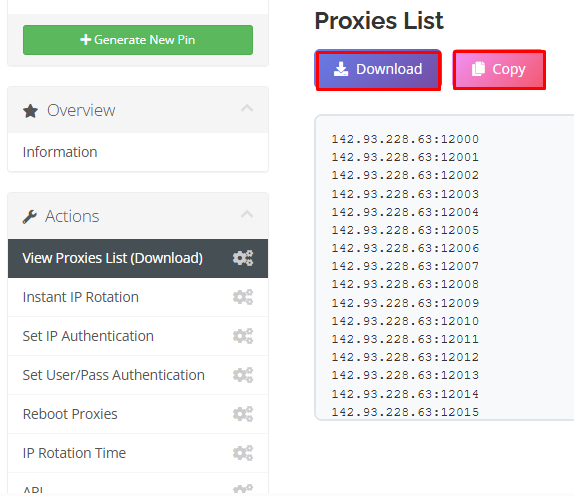
1. Download or copy the proxy list
After clicking on the Actions button, you’ll find the options to Download Proxies or Copy Proxies. These options become available once the service is activated.
You can either click Download to get the proxy list, or choose Copy to paste the proxies directly where needed.
2- Instant IP Rotation
The proxies' IPs are changed once you click on the submit option.
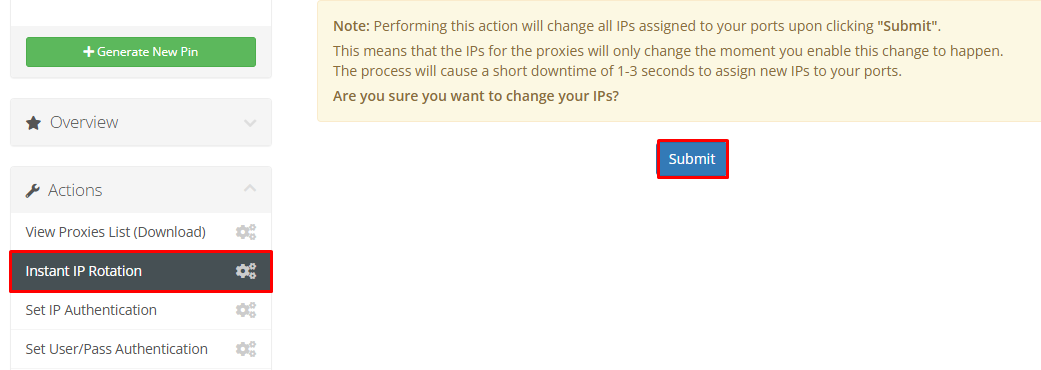
The proxies IPs are changed only when you enable this every time you want to make the change.
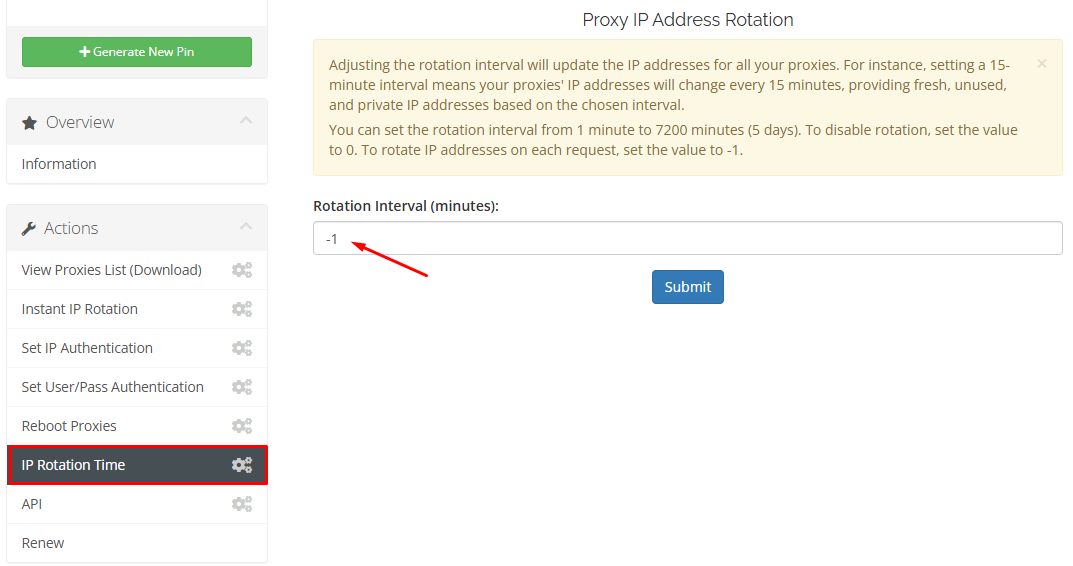
3- IP Rotation Time
The proxies IPs are automatically changed once you set the rotation time that you want. For example, if you choose 1 minute the proxies' IPs are going to change automatically every 1 minute without you having to do that every time. You can set the time to anything between 1 and 7200 minutes.
*Please note that setting the time to 0 means no rotation at all, hence the IPs are going to be static and won't change.
4- Set IP Authentication Option
There are 2 authentication options, one of which is the IP authentication for the device you want to authenticate the proxies on.

where you could simply add the IP address that you want in the white empty box, and in case you wanted to add more than
1 IP address all you have to do is click enter and write it in the following line as shown in the picture above, then click submit.
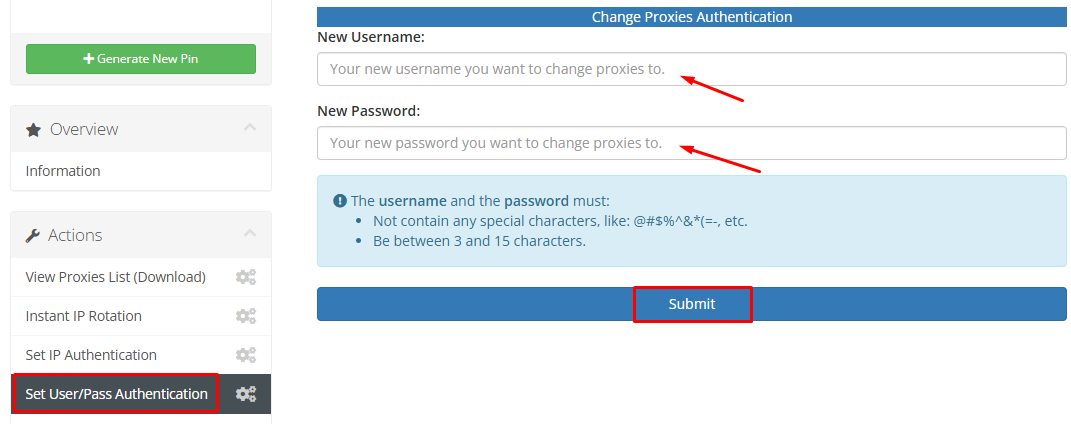
5- User/Password Authentication Option
The other authentication option is via the user name and password option but you have to make sure they follow the rules shown
in the picture below.
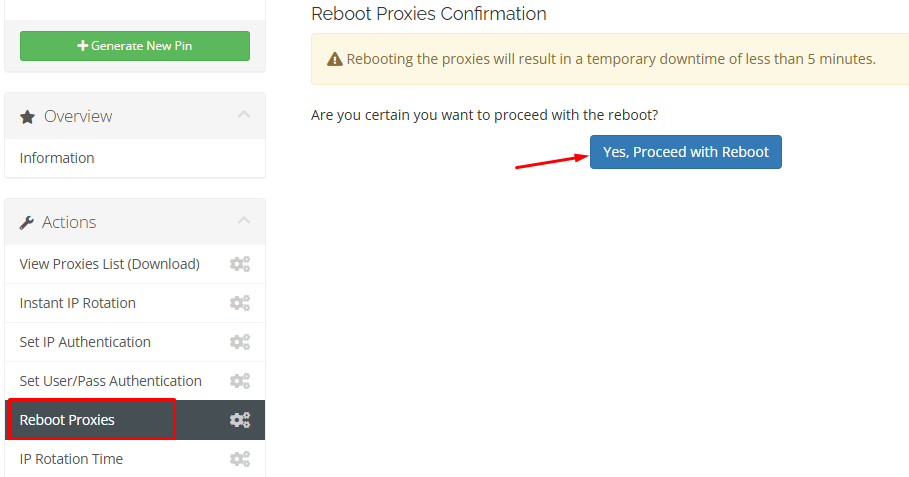
6- Reboot Proxies Option
This is a reset for the proxies servers in case a problem occurs, after enabling the option you have to wait 5 minutes or less for the proxies to start working normally again.
Important Note about the difference between IP Rotation Time and Instant IP Rotation
Instant IP Rotation:
1- It changes the IPs one time the moment you click on submit.
2- You have to do it every time you want to change the IPs (does not happen frequently).
3- Instant IP Rotation happens only when you manually request a change for the proxies' IPs to change.
IP Rotation Time:
1- Enables you to set a time for the IPs to change within, automatically, and without having to repeat this every time you want the IPs to change.
2- The change happens frequently according to the time you have set in the settings.
3- Happens automatically and frequently, unlike the instant IP Rotation.
And these are all the settings you have to make your proxies work better.
